
 Español
 English
 Français
 Português
⚡ The short answer
At ZentexNode, everything a Rust server owner usually wants to change is in a single panel tab: Game → Game settings. That's where you set how your server shows up in the server list, the gameplay rules, the map and, if you run Oxide or Carbon, the gather rates. You don't need to open any file. With the server off you click Save and it applies at startup; with the server running, Save and restart, because Rust reads these settings when it starts.📋 How players see you in the server list
The first block, Server list, is what players see before they join:- Server name: up to 60 characters. It's the first thing they read in the list.
- Description: shown when they click on your server, and it can have several lines. A good place for your rules, wipe day or Discord.
- Server website: a link, for example to your Discord or your site, shown on the server's page.
- Header image (512 × 256, JPG or PNG) and logo (square, 256 × 256): you add them with a link to the image.
- Server list tags: wipe frequency (weekly, every two weeks or monthly), region and server type (vanilla, softcore, hardcore, PvE, roleplay, creative, minigames…). You pick one of each, and any tags you added by hand stay.
🎮 The gameplay rules
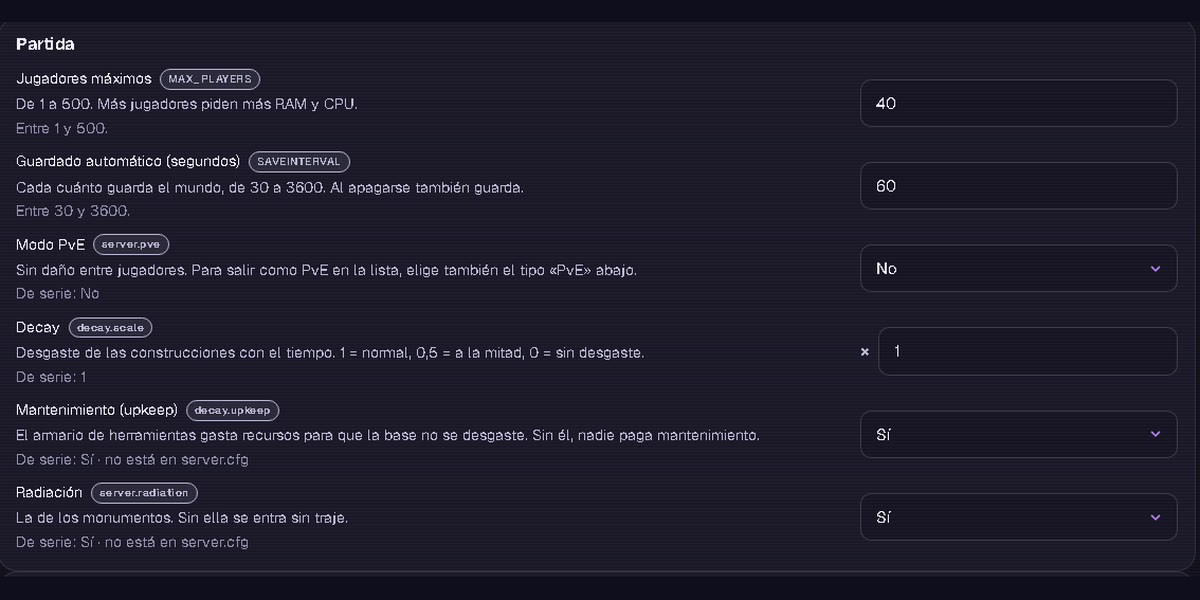
In the Gameplay block:- Max players: from 1 to 500. More players need more RAM and CPU, so match it to your plan.
- Auto-save: how often the world is saved, from 30 to 3600 seconds. It also saves when the server stops.
- PvE mode: no damage between players. To also show up as PvE in the list, pick the «PvE» type in the tags as well.
- Decay: how buildings wear down over time.
1is normal,0.5halves it and0turns it off. - Upkeep: the tool cupboard uses resources so the base doesn't decay. If you turn it off, nobody pays upkeep.
- Radiation: the radiation at monuments. Without it, players go in without a suit.
🗺️ The map and the wipe
In the Map block you choose the map («Procedural Map» generates a new one from the size and seed; the others are fixed Facepunch maps), the size (from 1000 to 6000; 3000 to 4000 works well for most servers, and a bigger one needs more RAM) and the seed, a number: the same seed with the same size always gives the same map. The Random button picks a new one for you.Changing the map, size or seed generates a new map at startup: that's a map wipe. What was built on the old map doesn't carry over, but learned blueprints are kept, and the old map stays saved on the server: if you set the same values again, it comes back. The panel warns you in red before you save.
The wipe frequency tag is only what players see in the list: it doesn't delete anything. You wipe by changing the seed or the map. Keep in mind that Facepunch forces one on the first Thursday of every month, with the game update. Before a wipe you don't want to lose, make a backup: here's how to create and restore backups from the panel.
⛏️ Gather rates: 2x, 3x, 5x or 10x
Rust doesn't have gather rates out of the box: to multiply what players gather you need Oxide (or Carbon) and the GatherManager plugin from uMod. In the panel it takes three steps:- 1. Install Oxide or Carbon. In the Startup tab, set «Modding framework» to
oxide(orcarbon) and restart the server. It's the only thing in this article that you change in Startup. - 2. Add the plugin. Go back to Game settings and, in the Gather rates block, click Add GatherManager.
- 3. Pick the multiplier. ×1 (normal), ×2, ×3, ×5 or ×10, or type your own. It applies to trees, rocks, animals, items picked up from the ground, quarries and the excavator.
Two things worth knowing before you switch:
- With Oxide or Carbon, your server shows up in the Modded tab of the Rust server list, not with the unmodded servers.
- Going back to Rust without mods requires reinstalling the server, because Oxide stays inside the game files. Make a backup first.
💾 Saving without losing anything
- Only what you touch changes. In the server files, only the lines for the settings you change are rewritten, and a dated copy is left next to them first (the last 10 are kept).
- If a field is locked, that setting is fixed somewhere else, for example in a line you added by hand to
server.cfg. The tab itself tells you where it is and how to change it. - Out-of-range values can't be saved: the panel tells you the allowed range for each one.
- If you run the server with other people, each of them needs the right permissions: read files to see the settings, edit files to change them and restart for «Save and restart». Here's how to give your team access with subusers.