
 Español
 English
 Français
 Português
⚡ The short answer
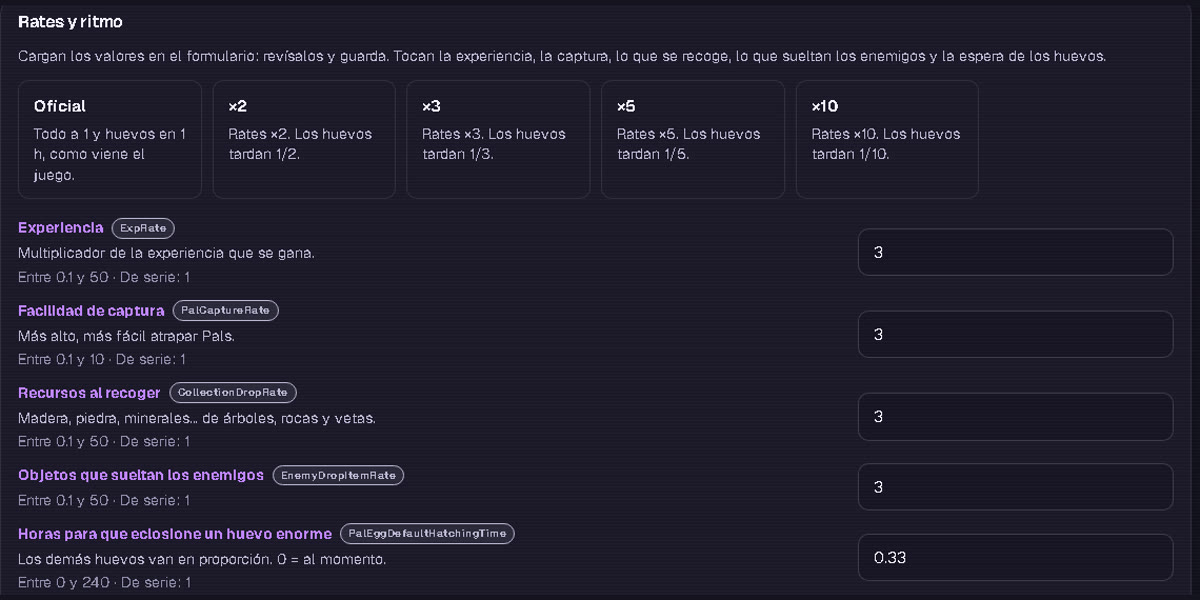
At ZentexNode, everything people usually change on a Palworld server is in a single panel tab: Game → Game settings. That's where you set the name, password, crossplay, admin password, rates with presets (Official, ×2, ×3, ×5 and ×10), death and PvP, survival, bases and guilds, the world and backups, without openingPalWorldSettings.ini. With the server off you click Save; with the server running, Save and restart (see below for why). In the Startup tab these settings are read-only, with a «Go to Game settings» button; update on start, the RCON port and the public IP stay there.📋 Server list and access
- Server name and Description: how it shows up in the server list. No commas or brackets: the startup uses them to separate options and they would break the file, so the panel won't let you save them.
- Server password: to join; if empty, anyone can join. Letters, numbers,
-and_. - Players at once: from 1 to 32.
- Show in the community server list: needed for consoles and Game Pass, which can't join by IP. Otherwise players join with the address and port.
- Where players can join from (crossplay): Steam, Xbox and PC Game Pass, PlayStation 5 and Mac. Tick at least one.
- Online player list in the menu.
🎮 Playing with friends on console
For players to join from Xbox, PS5 or Game Pass you need both things: tick their platforms in Where players can join from (crossplay) and turn on Show in the community server list, because consoles can't type an address. Then Save and restart, and they search for the server by name in the community list. A password helps make sure only your group gets in.👑 Becoming admin
In the Admin block you set the admin password. In game, open the chat and type/AdminPassword followed by that password: you're now admin. The panel console also uses it to send commands to the server, so don't leave it empty.⚙️ Rates: Official, ×2, ×3, ×5 or ×10
At the top of the Rates and pace block are the rate presets:- Official: everything at 1 and eggs in 1 hour, as the game ships.
- ×2, ×3, ×5 and ×10: they multiply experience, capture ease, resources when gathering and items dropped by enemies, and eggs take a half, a third, a fifth or a tenth of the time.
⚔️ Death, PvP and combat
- What you lose when you die: nothing, items (not equipment), items and equipment, or everything, party Pals too. By default, items.
- Hardcore (on death, the character is lost) and Pals are lost on death.
- PvP, Player-to-player damage and Friendly fire, and whether players can pick up what someone from another guild drops on death.
- Base raids: enemy groups that attack your bases from time to time.
- Predator Pals and the damage players and Pals deal and take.
🍖 Survival
Hunger, stamina and health regeneration for players and Pals, equipment wear and how fast food spoils. Everything is a multiplier:1 is normal.🏠 Bases and guilds
Bases per guild, Pals working at each base (more Pals, more load on the server), players per guild, building health, damage and decay, how many buildings each player can have, and whether bases of inactive guilds are deleted, and after how many hours.🌍 World and players, and saving
- Fast travel, picking where to start on the map, and whether the character stays asleep in the world after logging out.
- The global Palbox, random wild Pals, items dropped on the ground, meteor and supply drops, and chat messages per minute.
- Seconds between world saves and the game's own world backups, which use disk space.
🔄 Why «Save and restart»
Palworld rewrites its options files when it shuts down, with whatever it has in memory. If the.ini were changed while the server is running, the change would be lost when it stops. So, with the server running and changes to the options, the panel only offers Save and restart: it shuts the server down, waits for Palworld to save the world, writes your changes and starts it again. You don't need to stay on the page. If you only change the server list, the admin or base raids, Save applies on the next start.⚠️ Don't edit PalWorldSettings.ini by hand
On top of that, the name, description, passwords, players and base raids are written into the.ini again on every start, so a manual change to those lines doesn't last. The tab writes in the game's format, changes only what you touch, keeps a copy of the file first (the last 10) and, if the file changed in the meantime, warns you instead of overwriting it.🗺️ Worlds brought from a single-player or co-op game
If you upload a world from a single-player or co-op game, it comes with aWorldOption.sav file that overrides almost everything in this tab: you change the rates and nothing changes in game. The tab warns you about it. Stop the server and click Move WorldOption.sav aside: it renames it (it doesn't delete it) and, when you start the server, your settings apply.👥 If you run the server with other people
To see these settings they need permission to view «Startup» and file contents; to change them, permission to edit files and «Startup»; and for «Save and restart», permission to restart the server. Here's how to give your team access with subusers.If you don't have a server yet, the plans are on the Palworld hosting page.