
 Español
 English
 Français
 Português
⚡ The short answer
At ZentexNode, your Project Zomboid server options are in a single panel tab: Game → Game settings. That's where you change the name and password, who can join, the admin, PvP, players, safehouses and backups, without openingservertest.ini. The gameplay rules (zombies, loot, time, map) stay in Sandbox, and mods in Mods. Project Zomboid reads all of this at startup: with the server off you click Save and it applies when you turn it on; with the server running, Save and restart.🗂️ What goes in each tab
| Tab | What you change there |
|---|---|
| Game settings | Name, password, public list, whitelist, players at once, welcome message, admin, PvP, spawning, sleep, chat, factions, safehouses, fire, sledgehammer and backups. |
| Sandbox | The world rules: zombies, loot and loot respawn, time and map. |
| Mods | Steam Workshop mods and maps, by pasting the link. |
| Startup | The technical side: port, branch, update on start, «No-Steam mode» and mods by hand. The name, password, players and admin are shown there as read-only, with a «Go to Game settings» button. |
📋 Server list and access
- Name in the list: how it appears in the game's and Steam's server list.
- Server password: asked for when joining. Letters, numbers,
-and_. To remove it, leave it empty and save: it's really removed, fromservertest.initoo. - Shown in the public list: in the in-game list (Join → Internet). Players can always join by IP.
- Description in the list: one line, up to 256 characters.
- Open to anyone: if you turn it off, only the accounts you create can join (whitelist), with
/adduserin the console. - Players at once: not counting admins. The game itself warns that more than 32 can cause stutter.
- Welcome message: shown in the chat on joining; each line you type is a chat line.
- Accounts per Steam account, Delete the account on death (with a whitelist, whoever dies can't make a new character) and Kick on high ping.
👑 The game admin
In the Game admin block you have the username and password you log in with as admin. The password is set again on every start, so if you change it here, the new one applies. The username takes letters, numbers,- and _, with no spaces.Careful when changing the username: at startup the game creates another admin account with the new name, and the old one stays admin. To take the rank away, type
setaccesslevel "OldUser" none in the server console. To make another player admin, setaccesslevel "TheirUser" admin.⚔️ PvP
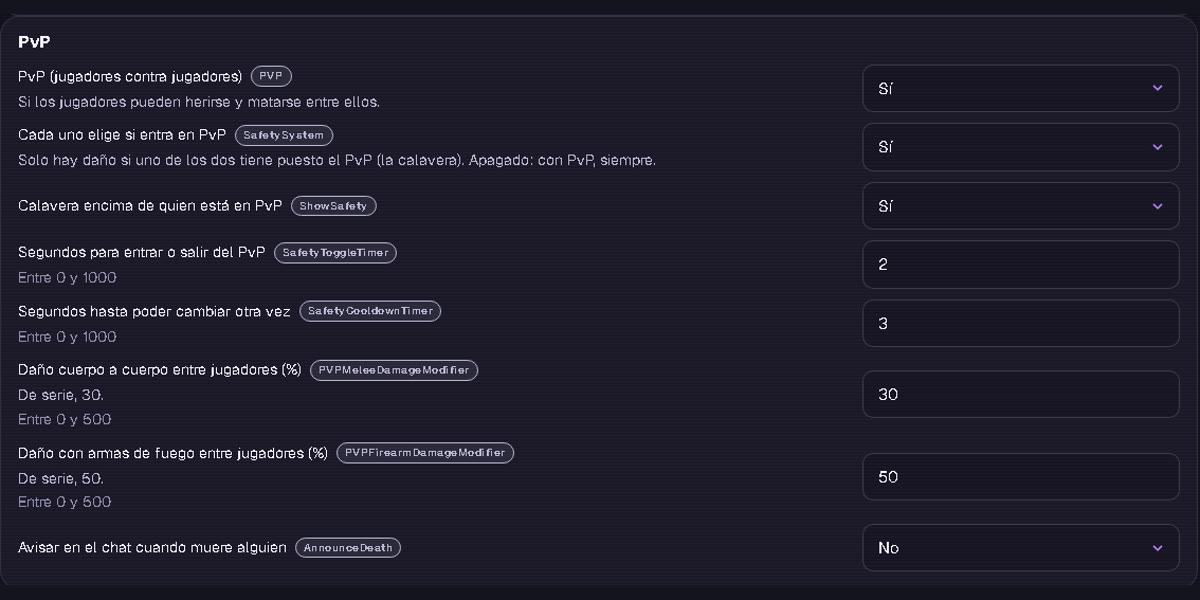
- PvP (player versus player): whether players can hurt and kill each other.
- Each player chooses to enter PvP: there's only damage if one of the two has PvP on (the skull). Off, with PvP there's always damage.
- The skull above whoever is in PvP, and the seconds to enter or leave PvP and before you can switch again.
- Melee and firearm damage between players, as a percentage: 30 and 50 by default.
- Announce deaths in the chat.
🧍 Players
- Pause when the server is empty: time doesn't pass if nobody is online.
- Spawn point: every new character spawns there, using coordinates from map.projectzomboid.com. With
0,0,0, each player picks where. - Items on spawn: comma-separated, with their module, like
Base.Axe,Base.Bag_BigHikingBag. - Respawn where you died, Sleeping allowed and Sleeping needed.
- What's shown: the username or the character's name above each player, and Other players on the map (nobody, friends, friends and nearby players, or everyone).
- Global chat, Voice chat and Factions, with the days survived needed to create one.
🏠 Safehouses
- Who can claim a safehouse: nobody, admins only or everyone.
- Whether non-members can enter or take things, whether fire damages it and whether you can respawn in it.
- The days survived needed to claim one and the hours away before losing it (real hours: 144 is 6 days).
- Whether non-residential buildings can be claimed, whether loot respawns in safehouses and whether they stay protected while the owner is online.
🌍 World and backups
- No fire: nothing burns, except campfires.
- Break things with the sledgehammer, and whether the sledgehammer only works in your safehouse.
- Items per container:
0means no limit, and every item counts (50 nails are 50). - Save the map every so many minutes, and the game backups: how many it keeps, whether it makes one on start and how often.
⚠️ Don't edit servertest.ini by hand
Project Zomboid rewrites the wholeservertest.ini every time it starts, in its own order and with its own comments: lines it doesn't know and comments you add disappear. The tab writes in the game's format, changes only the lines you touch and keeps a copy of the file first. If the file changed in the meantime (from the game or from Files), it warns you instead of overwriting it.If the server is new and has never started, the
.ini doesn't exist yet: until the first start you can only change the name, the password and the admin.🧩 What about mods?
They go in the Mods tab: paste the link to a mod or a Steam Workshop collection and the panel works out the Mod IDs and maps. It's step by step in how to install mods in Project Zomboid, and if your game has already started, read whether you can add mods to a game in progress first.The exception is No-Steam mode (in Startup): without Steam nothing is downloaded from the Workshop, so the Mods tab doesn't install anything. Mods are uploaded by hand and their Mod IDs, Workshop items and maps are typed in Startup. In that mode, set a server password: if it's open to anyone with no password, the panel warns you in red, because anyone who finds it can get in.
👥 If you run the server with other people
To see these settings they need permission to view «Startup» and file contents; to change them, permission to edit files and «Startup»; and for «Save and restart», permission to restart the server. Here's how to give your team access with subusers.If you're just starting out, how to create a Project Zomboid server covers the basics, and the Project Zomboid hosting page has the plans.