
 Español
 English
 Français
 Português
⚡ The short answer
At ZentexNode, everything people usually change on a Valheim server is in a single panel tab: Game → Game settings. That's where you set the name and password, whether it shows up in the list, crossplay, the world, its modifiers (difficulty, combat, raids, portals, no map…) and how often it saves. You don't need to type any startup parameter. Valheim reads all of this at startup: with the server off you click Save and it applies when you turn it on; with the server running, Save and restart (it saves the world when it stops). In the Startup tab these settings are read-only, with a «Go to Game settings →» button.📋 Name, password and server list
The first block, Server list and joining, is what your friends see before they join:- Server name: how it appears in the Valheim server list.
- Password: 5 to 20 letters or numbers (
-and_also work). It can't be part of the server name: if the server is called «Northern Vikings» and the password is «Vikings», Valheim won't start. The panel warns you and won't let you save it. - Shown in the list: with «No», the server doesn't appear in the public list and players can only join with «Join IP» or the join code.
- Crossplay (Xbox and Game Pass): lets players join from other platforms and gives the server a join code, which shows up in the console every time it starts and changes on every start. If someone gets stuck on «Connecting», turn it on. We cover it in depth in Valheim crossplay: playing across PC, Xbox, PS5 and Switch 2.
🌍 The world: pick one or create another
In the World block there's a drop-down with the worlds on your server. To switch worlds, pick another one and restart.If you choose «Another name: new world…» and type a name, Valheim creates a new world at startup. The old one isn't deleted: it stays saved and comes back if you pick it again. That way you can have, for example, one world for your main game and another for testing.
Want to play the world you already have on your PC? Upload it through Files and then pick it here: it's step by step in how to upload your own Valheim world to the server.
🎚️ World modifiers
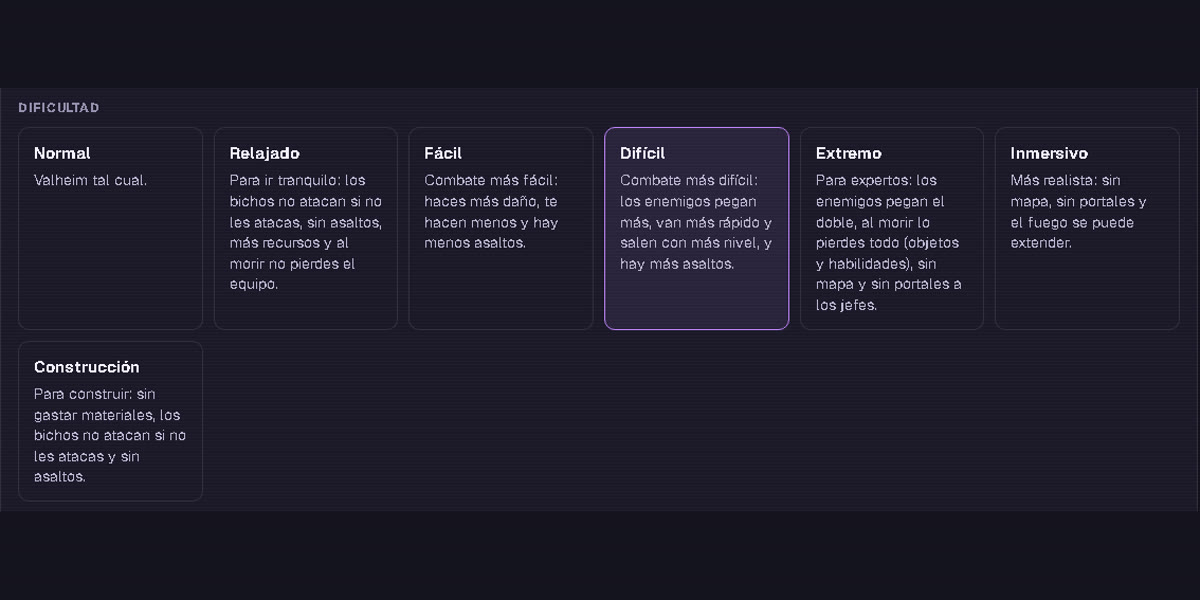
They're the same ones Valheim offers when you create a world in the game, but in drop-downs. At the top, «Your world has now: …» tells you what your world has right now, read from its own file.First you pick the difficulty, each one with what it does:
- Normal: Valheim as it is.
- Casual: creatures don't attack unless you attack them, no raids, more resources and you keep your gear when you die.
- Easy: you deal more damage, take less and there are fewer raids.
- Hard: enemies hit harder, move faster and spawn at higher levels, and there are more raids.
- Hardcore: enemies hit twice as hard, you lose everything when you die (items and skills), no map and no portals to bosses.
- Immersive: no map, no portals and fire can spread.
- Hammer: build without spending materials, passive creatures and no raids.
Three things worth knowing:
- Modifiers stay saved in the world. When you change them, at startup your world ends up exactly as you see it in the tab, no more and no less.
- A new world starts with whatever you choose here. If you switch worlds, each one keeps its own.
- If your server had something Valheim doesn't understand (for example, a misspelled modifier from before), the tab shows it with a warning and a Remove it button.
💾 World saving and backups
In the World saving block:- Save every (seconds):
1800is every 30 minutes. Saving more often means you lose less if something goes wrong, but it can cause a brief stutter while it saves. - World backups: how many automatic copies Valheim keeps next to the world (0 to 20).
- First backup every and Other backups every: how often those copies are made; by default, 2 hours and 12 hours.
🧩 What about BepInEx mods?
Mods aren't set in this tab. Upload your BepInEx pack through Files, turn on BepInEx (mods) in the Startup tab and restart; mods go inBepInEx/plugins. It's step by step in how to turn BepInEx on and off on your server, and how to pick and install them on your PC too in how to install mods in Valheim.👥 If you run the server with other people
Each of them needs the right permissions: view «Startup» to see these settings, change «Startup» to save them and restart the server for «Save and restart». For the drop-down to list the worlds on the server, they also need to read files; without that permission, the world name is typed by hand. Here's how to give your team access with subusers.If you don't have a server yet, the plans are on the Valheim hosting page.