
 Español
 English
 Français
 Português
📦 What your hosting includes
- 1 Node.js app per hosting, with 512 MB of memory and half a CPU core, while it builds too. Your PHP site and your email run separately.
- Node.js 20, 22 or 24 (22 is the default), with npm, yarn, pnpm or bun.
- Free, automatic HTTPS, on your domain or a subdomain.
- It comes with every plan, including the free trial.
A Discord bot, several apps or more memory? That's what Node.js / Python is for, our product built for it: you choose the RAM and get a live console.
🛠️ 1. Get your app ready on your computer
Before uploading anything, check these four things. They cause almost every problem.a) A start command. In your
package.json:"scripts": {
"build": "vite build",
"start": "node server.js"
}start is what launches your app: if your main file is app.js or index.js, use that. build is only needed if your app has a build step (React, Next.js, TypeScript…).b) It listens on
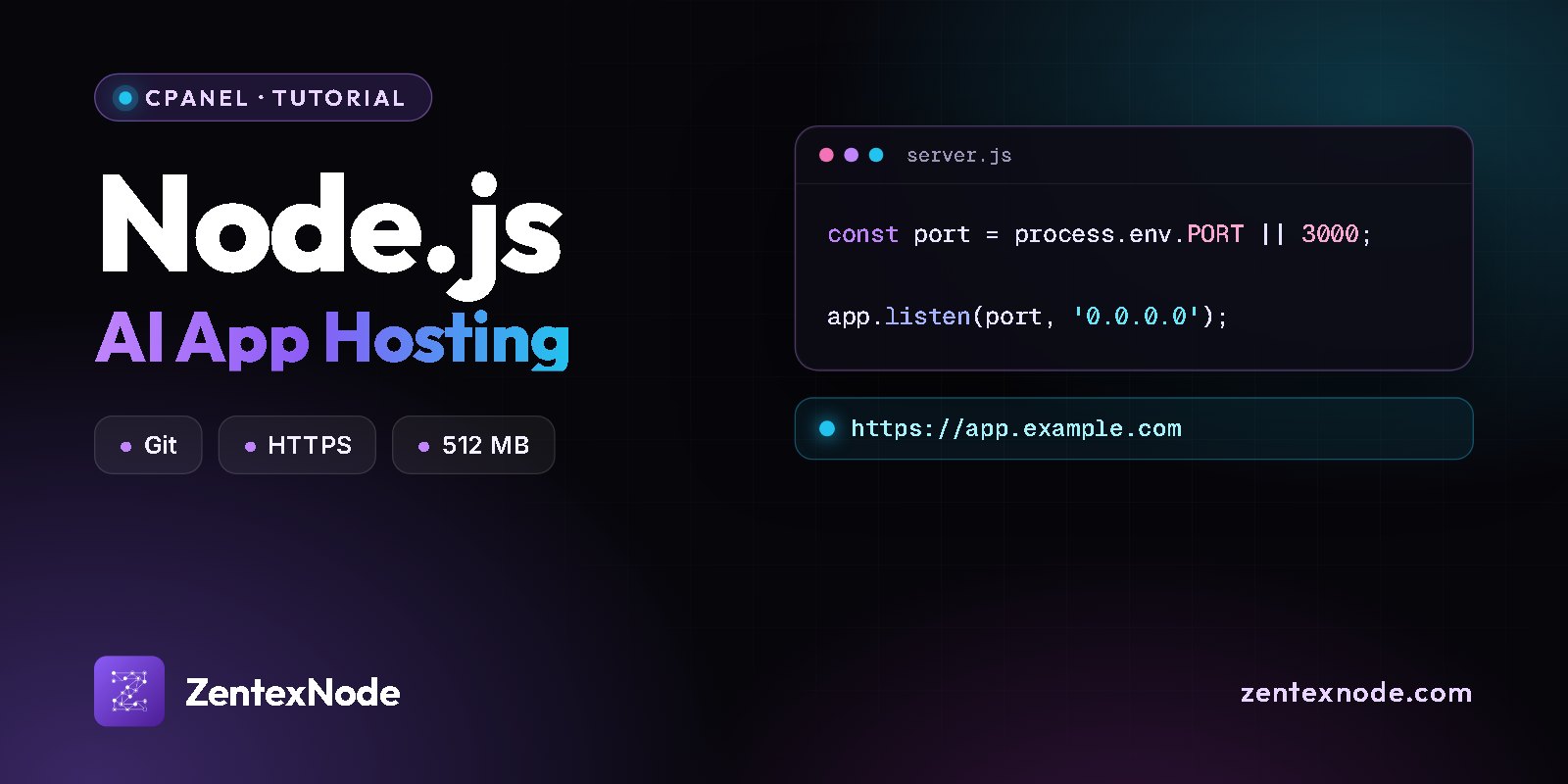
process.env.PORT and on 0.0.0.0. The panel gives it the port in the PORT variable. Don't hard-code a number or localhost, or the site will show a 502 error:const port = process.env.PORT || 3000;
app.listen(port, '0.0.0.0');"start": "next start -H 0.0.0.0" (Next reads PORT by itself).c) No
node_modules and no .env. Packages are installed for you, and variables go in the panel (step 4).d) Anything important goes to a database. Files your app writes survive a restart, but not always an update (step 6). Users, orders, balances…: better in a MySQL database, which the panel creates with the app.
🚀 2. Create the app in cPanel
- In cPanel, in the left menu, open "Websites & Apps" and click "Add Website".
- Under "Which domain will you use?", pick your domain if it has no site yet, or "Create a subdomain" (for example
app.yourdomain.com), the easiest option if you already have a site. - Under "How do you want to build?", choose "AI App Hosting": that's the panel's Node.js.
- On "Review your setup", click "Launch My Website". The wizard opens, with four steps: Source, Detect, Configure and Deploy.
🔀 3. Provide your code: Git is better
- "Git repository" (GitHub, GitLab, Bitbucket…). If it's public, paste its HTTPS URL. If it's private, its SSH URL: create a key under "Security" → "SSH Keys" and add its public part to the repository as a deploy key. Don't put your username and password inside the URL.
- "Upload a file" (
.zip,.tar.gz…). Fine for a one-off, but every new version is a new app: since you have one app per hosting, updating means deleting it and creating it again, and the data files it wrote are lost.
⚙️ 4. Detect, configure and deploy
Detect. Check what the panel found:- "Framework": Next.js, Express, NestJS, Nuxt, "Static site" or "Other".
- "Build command": for example
npm run build. Empty if your app has no build step. - "Startup command": for example
node server.jsornpm start. - For a static site that needs building, "Output directory": the folder your build creates (
distorbuild). - If your
package.jsonisn't at the root, "Application path from root", for examplepackages/web.
Deploy. Click "Deploy" and you'll see three stages: "Installing dependencies", "Building" and "Starting". If something fails, "Show Logs" shows the error; fix it and click "Retry Deploy". When it's done, click "Manage": your app is live at
https://your-domain, with an SSL certificate that's set up automatically (the first time can take a few minutes).Builds take time. The build uses the same half core as the app: a big app (a Next.js app, for example) takes longer to build, and builds over 10 minutes are cut off. Drop dependencies you don't use. For a static site, build it on your computer and upload the result as a "Static site".
🔑 5. Environment variables: letters and numbers only for keys
On your app's page, in the "App Env" tab: "Add Variable", or "Bulk Edit" to paste your whole.env, one variable per line. Then click "Save & Restart": changes apply when the app restarts.- No quotes. The panel stores the value as-is: if you write
"abc", your app gets the quotes too. - Keys and passwords: letters and numbers only. An unquoted
#cuts the value short if your code also reads a.envfile (withdotenvorprocess.loadEnvFile), because there it starts a comment. To generate a strong key:openssl rand -hex 32. - If you see "This variable is reserved", it's one cPanel sets (the database ones, for example).
- Don't upload your
.envwith the code.
📋 6. Your app day to day
In "Websites & Apps", your domain has a Node.js tag. Open it and you get "Visit site", "Stop" / "Start", "Restart" and "Redeploy", and three tabs:- "App Logs": what your app writes with
console.logand the errors it stops with. It's the first place to look when the site shows an error. - "App Env": the variables.
- "App configuration": the Node.js version, the commands and the "Run mode". Keep "Production": "Development" is for testing and can restart the app on its own.
To update:
- With Git: push your changes and click "Redeploy". The panel pulls the new code, installs, builds and restarts it, and the files your app wrote are kept.
- With an uploaded file: first download whatever your app keeps in files (with the File Manager), delete the app under "App configuration" → "Danger zone" → "Delete App", and create it again with the new file and your variables. Your site is offline meanwhile.
🧯 7. Common problems
| What you see | What to do |
|---|---|
| A 502/503 error or "unavailable" | Make your app listen on process.env.PORT and on 0.0.0.0 (step 1b). |
| "The app failed to start" | In "Startup command", the file that really starts it: node server.js. |
| "The build failed" | "Show Logs". If your package-lock.json is stale, run npm install on your computer and upload the new one. |
| The build gets cut off | It ran over 10 minutes: drop dependencies or build on your computer (step 4). |
| A key doesn't work (401, "unauthorized") | Letters and numbers only, no quotes, then "Save & Restart" (step 5). |
| "This domain already has a site" | Use a subdomain for the app. |
JavaScript heap out of memory, or it stops with code 137 | It's over 512 MB. You can cap Node with node --max-old-space-size=384 server.js; if it really needs more, Node.js / Python. |
| "Node.js app limit reached (1/1)" | You already have your app: delete the one you don't use, or get Node.js / Python for several. |
| Data lost after an update | It was updated with an uploaded file. Use Git, and a database for what you can't lose. |